You can make a WordPress block theme site bilingual in an afternoon: install Blocklingo, connect an AI provider, translate everything as drafts, then review and publish. This guide walks through each step, using English to Ukrainian as the example.
Before you start
- WordPress 6.6 or later and PHP 8.1 or later
- A block (FSE) theme, such as Twenty Twenty-Five. Classic themes work for content and SEO, but per-language header and footer need a block theme.
- Pretty permalinks: Settings > Permalinks, anything except "Plain"
- An API key from one provider: Google Cloud Translation, DeepL, Gemini or Claude. On WordPress 7.0+ you can skip the key and use the AI provider set up in Settings > Connectors.
- A backup. Blocklingo creates drafts and never overwrites your originals, but a backup before any big change is a good habit.
Step 1. Install Blocklingo
Go to Plugins > Add New, search for "Blocklingo", install and activate. Every existing post and page is assigned to your default language; nothing else changes until you add translations.
Step 2. Add a language
Open Settings > Blocklingo. The default language comes from Settings > General > Site Language. Add Ukrainian (or any other). Its pages will live under /uk/, while the default language keeps clean URLs without a prefix.
WordPress, theme and plugin translation files for the new language are installed automatically.
Step 3. Connect a translation provider
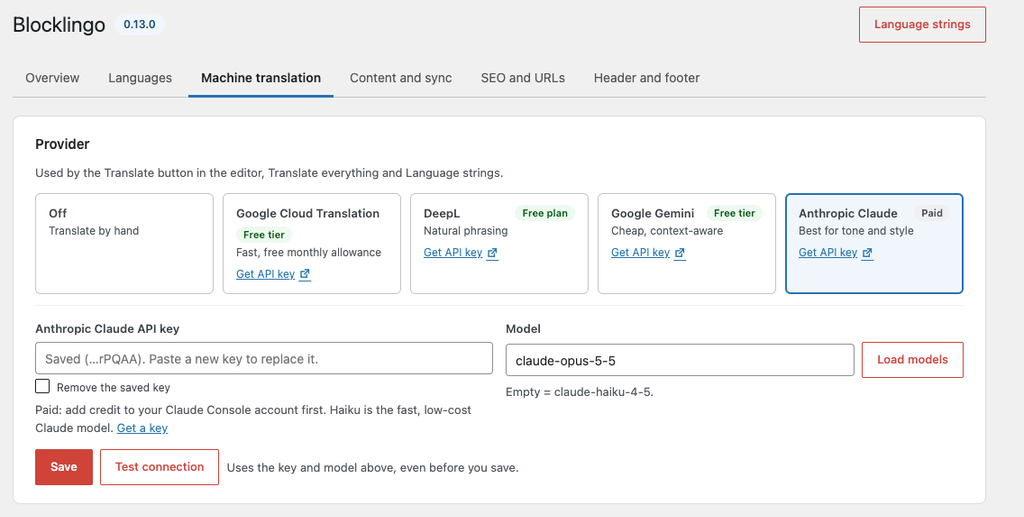
In the Machine translation section, pick a provider:
| Provider | Free allowance | Good for |
|---|---|---|
| Yes | Fast, many languages | |
| DeepL | Yes | Natural European languages |
| Gemini | Yes | AI quality at low cost |
| Claude | No, paid | Best tone and context |
| WordPress AI | Depends on your connector | WordPress 7.0+, no extra key |
Paste the API key, press "Load models", choose a model and press "Test connection". Then fill in the Glossary with brand names that must never be translated, one per line.
Tip: you can keep the key out of the database by adding it to wp-config.php, for example define( 'BLOCKLINGO_CLAUDE_KEY', '...' );.
Step 4. Translate everything
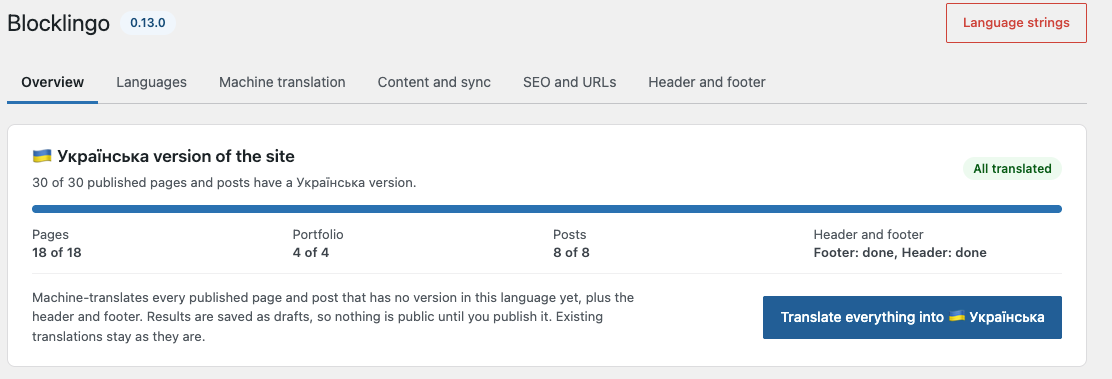
On the Overview tab, press Translate everything into Ukrainian. Blocklingo translates in this order: categories and tags, menus, header and footer, then pages and posts. Keep the tab open; it shows progress and the time left.
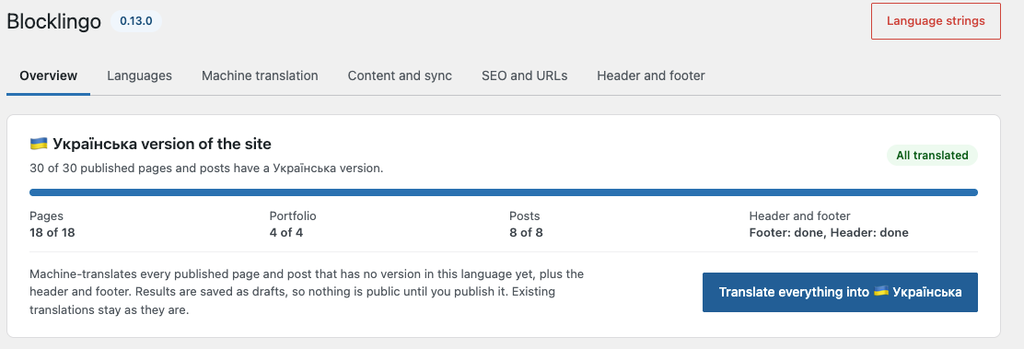
If something goes wrong, it tells you in plain words. It pauses after 3 failures in a row and stops at once if the key is rejected or the account is out of credit. When it finishes, the page reloads with links to the new drafts.
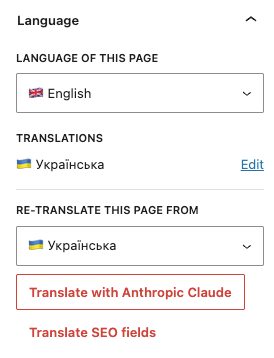
Prefer to go page by page? Open any page in the editor, find the Language panel in the sidebar and press Translate.
Step 5. Review and publish the drafts
Everything is created as a draft, so nothing reaches visitors until you say so. Open each draft, check names, prices, legal text and calls to action, then publish. Make sure the front page and the posts page are translated too, so /uk/ has its own home.
Step 6. Header, footer and language switcher
- On the Header and footer tab, check that language copies of the header and footer exist (Translate everything creates them). In the Site Editor, edit the menus inside header-uk and footer-uk if needed.
- Add the Language switcher block to your header in the Site Editor. It can show codes, names or flags.
- Classic theme? Use "Add to menu" on the same tab, or the
[blocklingo_switcher]shortcode.
Step 7. Translate theme and plugin strings
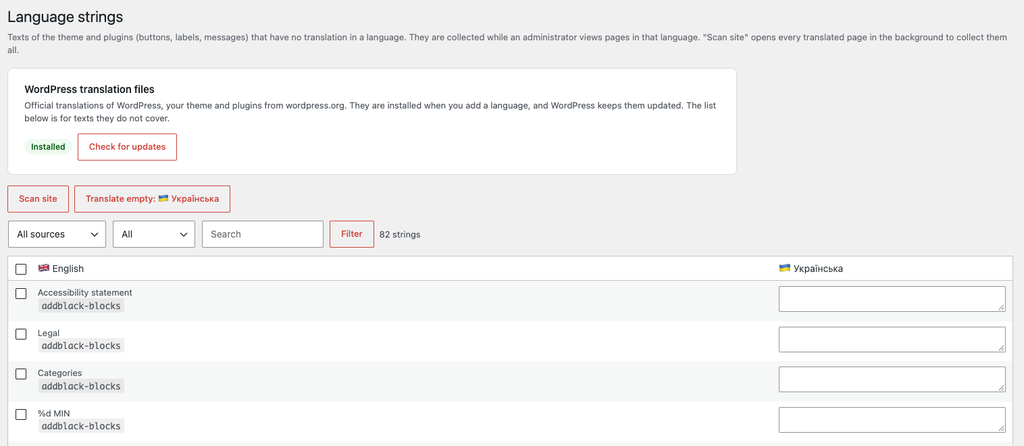
Some texts are not in your pages: a "Read more" link in the theme, a button label in a plugin. Go to Settings > Language strings, press Scan site, then Translate empty (or type translations by hand) and save.
Step 8. Fix Cyrillic slugs (optional)
If your site already has Cyrillic addresses like /новини/, use Convert to Latin at the bottom of the settings page. Old addresses redirect to the new ones, so links and search rankings are kept. New translations get Latin slugs automatically.
Checklist before going live
- Front page and posts page translated and published
- Header, footer and menus checked on /uk/
- Language switcher visible on desktop and mobile
- SEO titles and descriptions translated (Yoast, Rank Math, Slim SEO or SEOPress)
- Forms, prices and legal pages reviewed by a person
- Language strings scanned and translated
FAQ and troubleshooting
"The translation provider rejected the API key." Check that the key is for the provider you selected and has the API enabled (for Google, the Cloud Translation API in your project). Press "Test connection" after pasting it.
Translate everything stopped halfway. Read the message: usually the account is out of credit or hit a rate limit. Fix it and run it again - items translated so far count as done.
The footer on /uk/ is still in English. Open the Header and footer tab and check that footer-uk exists and is translated. Some themes show only 2 of their template parts; the others are marked "Not used by your templates".
Does it work with the classic editor? Yes, content is translated on the server by Translate everything. The Translate button and block-safe translation live in the block editor, and the plugin warns you which post types have it turned off.
What happens if I deactivate the plugin? Your content stays as normal posts and pages. Language URLs like /uk/ stop working until you turn it back on.
Will contact forms break? No. Shortcodes and Contact Form 7 blocks are never sent to translation.
Stuck? Use "Contact the developer" on any error message in the plugin, or write to me. If you would rather have it done for you, I set up multilingual sites too.